
Adobe Photoshop is an incredibly powerful tool, but it can also be overwhelming. The right plugins add features, automate tedious tasks, and unlock creative possibilities that would take hours to achieve manually. Whether you need better grid systems, AI-powered retouching, or instant CSS export, these ten extensions will help you work faster and smarter.
1. GuideGuide: Perfect Grids in Seconds
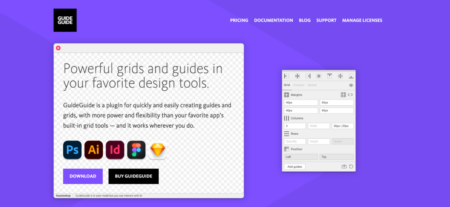
Before any serious layout work, you need a grid. GuideGuide eliminates the manual tedium of dragging rulers and calculating columns. With pixel-perfect precision, you can create rows and columns, find midpoints, and even generate grids based on a selected element. Save your favorite configurations for future projects.
Cost: €9–39 per year, depending on the tier.
2. Luminar: AI-Powered Photo Editing
Luminar brings advanced artificial intelligence directly into your Photoshop workflow, as either a plugin or a standalone application. It handles color correction, contrast adjustments, object removal, and even skin retouching in just a few clicks. The results feel natural, not over-processed.
Cost: Annual subscription or perpetual lifetime license.
3. Ultimate Retouch Panel: Professional Retouching at Scale
Photoshop’s built-in retouching tools are capable, but professionals quickly hit their limits. Ultimate Retouch Panel adds over 200 features, including 30+ advanced tools for precise, localized adjustments. It’s designed for portrait and fashion photographers who need consistent, high-quality results across hundreds of images.
Cost: $29.
4. Shutterstock Plugin: Stock Images Without Leaving Photoshop
The Shutterstock extension lets you search, preview, and license royalty-free images directly from your Photoshop workspace. No more switching between browser tabs or downloading files before you know if they work. Find what you need and place it instantly.
Cost: Pay-per-image or subscription based on your Shutterstock plan.
5. Fluid Mask 3: Precision Masking Made Easy
Masking complex subjects—especially hair, fur, or intricate details—is one of the most time-consuming tasks in Photoshop. Fluid Mask 3 simplifies the process dramatically, delivering cleaner edges and more accurate masks in a fraction of the time.
Cost: €79 (excluding tax). It’s an investment, but the precision is unmatched.

6. Nik Collection: A Complete Editing Suite
Nik Collection is a bundle of powerful editing tools, including filters, color adjustment, HDR image creation, noise reduction, and elegant black-and-white conversion. What sets it apart is the “U Point” technology, which lets you select specific areas of an image for adjustment without manual masking. Localized edits become fast and intuitive.
Cost: Varies by version and license type.
7. PixelSquid: Add 3D Objects Without Complex Software
PixelSquid gives you access to a massive library of 3D objects that you can rotate 360 degrees and place directly into your compositions. Every object comes pre-textured, with adjustable lighting and perspective for realistic integration. No 3D modeling experience required.
Cost: Subscription-based.
8. Vexus Digital: Lightweight Creative Add-Ons
Vexus Digital offers a range of custom plugins designed to enhance your creative process without bogging down system performance. Unlike heavy traditional design templates, these tools add effects, textures, and creative features while keeping file sizes manageable and workflow smooth.
Cost: Varies by plugin.
9. CSS Hat 2: Convert Layers to Clean Code
Translating Photoshop styles into CSS has always been a pain. CSS Hat 2 solves this problem instantly. Select any layer, and the plugin generates CSS3 code that matches your design. It supports Less and Sass as well, producing clean, production-ready output.
Cost: One-time purchase.
10. ON1 Effects: Instant Photo Styling
ON1 Effects brings hundreds of presets and over 30 stackable filters to your Photoshop workflow. New generative AI tools add even more creative control. Apply cinematic color grading, dramatic black-and-white treatments, or unique textures and borders in seconds.
Cost: €79.99 for a perpetual license.
How to Install Photoshop Extensions
Extensions add new panels, actions, or shortcuts to Photoshop. There are two main ways to install them.
Via Adobe Exchange: Browse extensions on the Adobe Exchange website. Click “Free” or “Buy,” and the extension installs automatically into Photoshop.
Via third-party websites: Downloaded extensions usually come as executable files (.exe) or compressed zip files. For executable files, run the installer and follow the prompts. For zip files, extract the contents and copy the folder into Photoshop’s extensions directory (typically located in Program Files). Restart Photoshop, and the extension will appear in the Window > Extensions menu.
Why Install Plugins at All?
Extensions save time. They automate repetitive tasks, add professional-grade tools, and unlock creative possibilities that would otherwise require complex workarounds. Whether you need better masking, instant CSS, AI retouching, or 3D objects, the right plugin removes friction and lets you focus on the creative work that matters.
For designers working on ambitious projects, these tools aren’t optional—they’re essential.
About the Author

Peter Makeshoff
Peter Makeshoff is the founder and main author of Designer Daily.