
A PDF looks like a document. Structurally, it behaves more like a printed page that happens to be digital — every letter, image, and line sits at a fixed coordinate, locked in place the same way ink sits on paper. Word documents don’t work that way at all. They’re built around flow: text that reflows when a margin changes, paragraphs that adjust when a font resizes. Converting from one model to the other is where most of the friction actually lives.
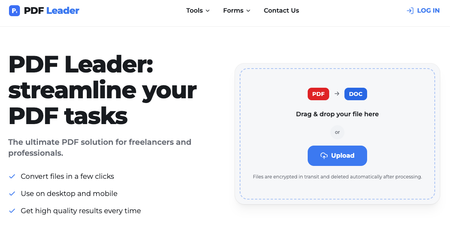
The service Pdfleader is one of the tools built specifically around that gap, converting a PDF to Word while trying to preserve the original formatting rather than just extracting the text and hoping the layout survives on its own. Understanding why that’s harder than it sounds explains why some converters succeed at it and most don’t.
The Page Isn’t Built To Reflow
A PDF page is a fixed canvas. Every element has an exact x and y coordinate, which is exactly what makes PDFs reliable for printing and terrible for editing. Word has no concept of a fixed coordinate — everything sits inside a flowing structure of paragraphs and lines instead.
This is why a straightforward paragraph converts cleanly, while a page built around precise visual placement — a flyer, an invoice, a form — has nothing equivalent to convert into. The converter has to guess at a structure that was never actually there, and that guess is where formatting problems usually start.
Fonts Aren’t Always Included In The File
A PDF can reference a font without embedding it. When that happens, the conversion tool substitutes something close, and “close” is doing a lot of work in that sentence — spacing shifts, line breaks move, and a paragraph that fit on one page suddenly spills onto two.
That’s because Word needs the actual font file to render text identically, while a PDF viewer can often fake it using outline data alone. The visual result looks fine in the PDF and subtly wrong the moment it becomes editable — a mismatch that’s easy to miss until someone starts typing in the new document and the whole page shifts.
Scanned Documents Have No Text To Convert
A scanned page is a photograph, not a document. There’s no underlying text layer to extract — only pixels arranged in the shape of letters. Converting one of these without OCR produces an image glued into a Word file, not editable content.
This is the reason “PDF to Word” and “OCR” are sometimes the same feature and sometimes two completely separate steps, depending on which tool is doing the converting.
Tables And Columns Are The Most Fragile Layouts
A table in a PDF is often just a grid of positioned text and lines, with no data connecting one cell to the next the way a real Word table does. Multi-column layouts have a similar problem — the reading order isn’t stored anywhere explicit, so a converter has to infer left-to-right, top-to-bottom, and frequently gets it wrong on anything more complex than two even columns.
That’s because reconstructing a table means rebuilding relationships that never existed as data in the first place — only as a visual arrangement that happened to look like a table to a human reader. A converter that gets this wrong doesn’t usually fail loudly; it just quietly merges two columns into one and moves on.
Images Can Interact With Text In Ways Word Doesn’t Expect
Text wrapped tightly around an image, or layered behind a watermark, translates awkwardly once the underlying model changes from fixed to flowing. Word can wrap text around images, but its version of wrapping doesn’t always match what the PDF’s fixed layout was actually doing.
This creates the strange result where a page looks almost right after conversion, but a paragraph has shifted three lines down for no visible reason.
Encryption Adds A Failure Point Before Conversion Even Starts
A password-protected or permissions-restricted PDF can block conversion entirely, or convert in a way that strips out the very security the file was built with. Not every converter handles encrypted files the same way, and some simply refuse the file outright. That’s a detail worth checking before assuming any given tool will handle a specific document, rather than finding out mid-task.
Not Every “Conversion” Actually Converts
Some tools solve all of the above by avoiding the problem — converting a PDF page into an image and pasting that image into a Word file. The result opens in Word, looks correct, and contains zero editable text underneath.
The goal of a real conversion isn’t just producing a file that opens in Word — it’s producing one that can actually be edited afterward, which is a meaningfully higher bar than most free tools quietly settle for.
The Difference Between Converting And Converting Correctly
Each of these seven problems traces back to the same root cause: a PDF and a Word document are built on fundamentally different assumptions about how a page works. Pdfleader is built around addressing that gap directly rather than working around it, aiming to preserve formatting through the conversion rather than treating layout as an acceptable casualty.
That focus — accuracy over speed, and a real editable document over an image that merely looks like one — is what separates a conversion that actually works from one that only appears to, and it’s the standard worth checking any tool against before trusting it with a document that matters. None of the seven reasons above disappear just because a tool is fast or free; they only get handled well or handled poorly.
About the Author

Peter Makeshoff
Peter Makeshoff is the founder and main author of Designer Daily.