
In today’s digital world, the MP4 format has become one of the most used formats for video files. Sometimes, you may face problems while playing your MP4 video file from the USB flash drive. In such cases, you generally get errors like video playback issues, a black screen, the video may hang in between, and it may even fail to open in your video player.
There may be some specific reasons for this problem, such as file corruption, problems with the USB flash drive, incompatible codecs, unfinished transfer of the video, damaged storage, etc. Fortunately, there is always a chance to fix these video playback problems and restore your video files’ access.
In this guide, we will explore possible reasons that prevent the playing of your MP4 videos from the USB and give you the best solutions to fix the problem.
Why Won’t MP4 Videos Play from a USB Drive?
Before you proceed with any video repair method to fix MP4 videos not playing from the USB drive, it’s important to find the exact reason for the problem. Some common reasons include:
Corrupted MP4 Video File
If your video is corrupted, your media player may show an error while playing it. Some common reasons for such video corruption are an interrupted download or transfer of the video file.
Incomplete File Transfer
If the transfer process was interrupted halfway through, it can lead to an incomplete MP4 video. Usually, MP4 videos have corrupted data, which makes them non-playable.
Unsupported Video Codec
Although the MP4files are compatible with many devices and systems, they may be encoded with an unsupported codec, causing a media player or device to fail to recognise the video file. It means that the file cannot be played altogether or at least produces audio only.
USB Drive File System Errors
The file structure on a USB drive may become corrupted, making files impossible to access. The problem occurs mostly because of improper removal of the drive, abrupt shutdown of the computer, or usage of the same USB in different devices.
Malware or Virus Infection
Viruses may also lead to corruption of video files and the file system itself. They can either destroy the file content or make files hidden.
Outdated Media Player
Sometimes, a particular media player can be outdated and not compatible with the latest video codecs. Updating or changing the media player can help to solve the problem.
Signs That Your MP4 Video is Damaged
When your MP4 video gets damaged due to any of the aforementioned reasons, it may display one or more of the following symptoms:
- The MP4 file does not open at all.
- Error messages appear during playback.
- Audio plays, but video is missing.
- Video freezes or stutters in between.
- The file size appears unusually small or zero bytes.
- The media player crashes when opening the file.
If you experience these issues, it’s important to immediately apply proper MP4 video repair workarounds.
How do I Fix MP4 Videos That Won’t Play From USB?
Now that you know the common causes and symptoms, try the following quick fixes to video won’t play on Windows from your USB drive:
Method 01: Try Playing Your MP4 Video on Another Device
Before you apply any advanced video repair methods, check if the problem is with your video or it’s the device which prevents it from playing. Testing the video on another computer or media player can help identify the actual cause. Follow the below steps to play your MP4 videos from a USB on another computer:
- Firstly, remove the USB drive from your computer and connect it to another computer
- Copy the MOV video that you need to play to the local drive.
- Try playing it using a different media player.
- If the video plays normally, then the problem is with your computer or the video player.
Method 02: Use a Different Media Player
An MP4 file will have video and audio stream data encoded through particular codecs. You will not be able to run the video file on your media player if it does not support the required codecs. In this case, you can simply switch to another media player and see if the video runs smoothly on it. To do this, you need to:
- Install a reliable media player on your PC.
- Open your MP4 file.
- Check whether playback works correctly.
Method 03: Check Your USB Drives for Errors
File system errors on the USB drive may prevent video files from opening properly. You can follow the below steps to check your USB drives for any such error:
- Connect the USB drive to your computer.
- Launch This PC, then right-click on the USB drive.
- Select Properties, go to the Tools tab.
- Click Check under Error Checking and follow the on-screen steps.
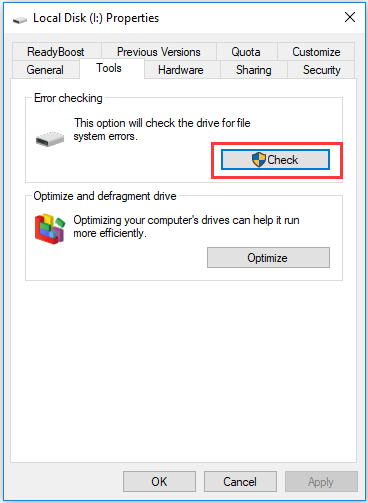
This method helps your Windows PC to scan the USB drive for logical errors and attempts to repair them, improving file accessibility.
Method 04: Update Your Media Player
Sometimes, an outdated media player is one of the main culprits that prevents MP4 videos from playing properly from USB drives. Also, older media players may not support newer video codecs. In such cases, follow the below steps to update your media player:
- Launch your media player.
- Go to Tools, then tap Check for Updates.
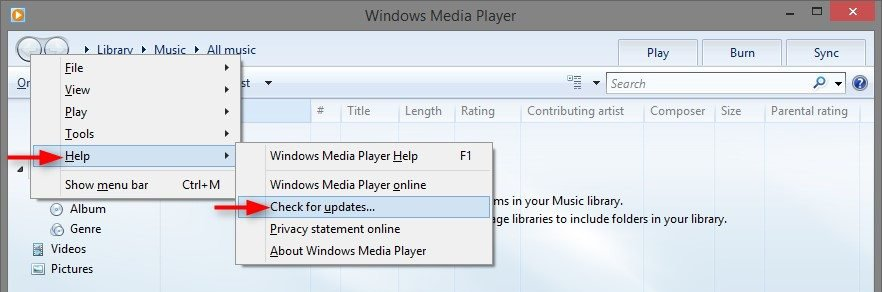
- Install the latest version on your device.
- Once done, restart the application and try playing your video again.
Method 05: Repair Corrupted Video Using an Online Video Repair Tool
If the video file itself is damaged and you’re unable to play your MP4 video from the USB, repairing it may restore playback. You can use online video repair like Stellar Online Video Repair to fix playback errors on your device. It supports repairing of videos damaged due to several reasons, including interrupted file transfers, sudden USB removal, virus attacks, bad sectors on the drive, or unexpected system shutdowns.
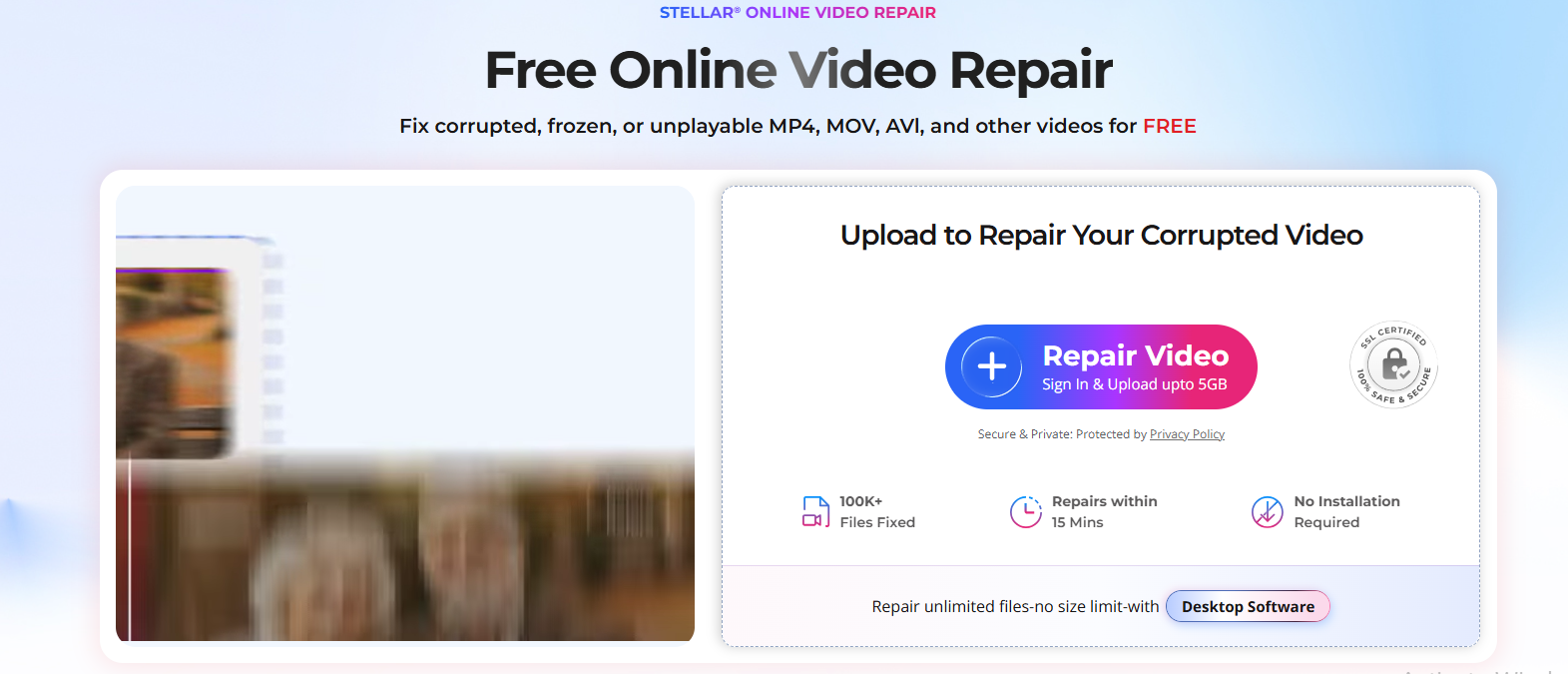
This is a web-based video repair service that can fix corrupted MP4, MOV, AVI, and other video formats without requiring software installation. You can easily repair your damaged videos online from any device with a stable internet connection. It also allows you to preview the repaired files before saving them on your device.
Wrapping Up
When MP4 videos won’t play from a USB drive due to corruption or any other reason, you can go with the aforementioned video repair methods one by one to fix them. First of all, play the file on another device and a different media player. Secondly, find out whether there are any issues with the USB drive, which include errors, viruses, and improper transfer of your data.
Then, if your problem isn’t solved yet, try to use some third-party software solutions to fix your videos. Thus, you will diagnose your issue easily thanks to the troubleshooting techniques described above. And if you’re someone who regularly creates video content, whether recorded or generated using AI animation video generators, it always helps to keep backups of your files to avoid such playback issues in the future.
Frequently Asked Questions (FAQs)
Why does my MP4 file not play from a USB drive?
There could be many reasons for this, including corrupt videos, transfer errors, incompatible codecs, USB drive errors, and even physical problems with the storage medium.
Is it possible to repair a corrupted MP4 file?
Yes, you can fix a corrupted MP4 file with the help of video repair programs like Stellar Repair for Video, which can fix damaged video structure and play it.
Can I get back an MP4 file from the broken USB drive?
Yes, because you can fix corrupted MP4 files with the help of video repair tools, including Stellar Online Video Repair.
How do I fix file system errors on my USB drive?
It is recommended that you try to use the Windows Error Checking utility or the CHKDSK command-line tool.
About the Author

Peter Makeshoff
Peter Makeshoff is the founder and main author of Designer Daily.