
Every form has one. A field that users consistently misunderstand, skip, or fill out incorrectly. For some forms, it is the state dropdown where users type “CA” instead of selecting “California.” For others, it is the phone number field where users include parentheses, spaces, or dashes in unpredictable combinations. The field is not broken because users are lazy. It is broken because the design is broken.
Here is how to identify, fix, and prevent the form fields that cause the most friction.
The Anatomy of a Problem Field
The field that nobody fills out correctly has predictable symptoms.
- High error rates. More than 10% of users fail to complete the field correctly on the first attempt. This is not user error. It is design error.
- Inconsistent user input. Users try different formats because none is clearly specified. Some include dashes. Some use parentheses. Some leave spaces. The variation is a signal that the field is not communicating its requirements.
- High abandonment. Users leave the form entirely rather than complete the field. The field is not just annoying. It is a blocker.
- Support inquiries. The field generates questions. Users email, call, or chat to ask what they are supposed to enter. The field has failed.
The Most Common Offenders
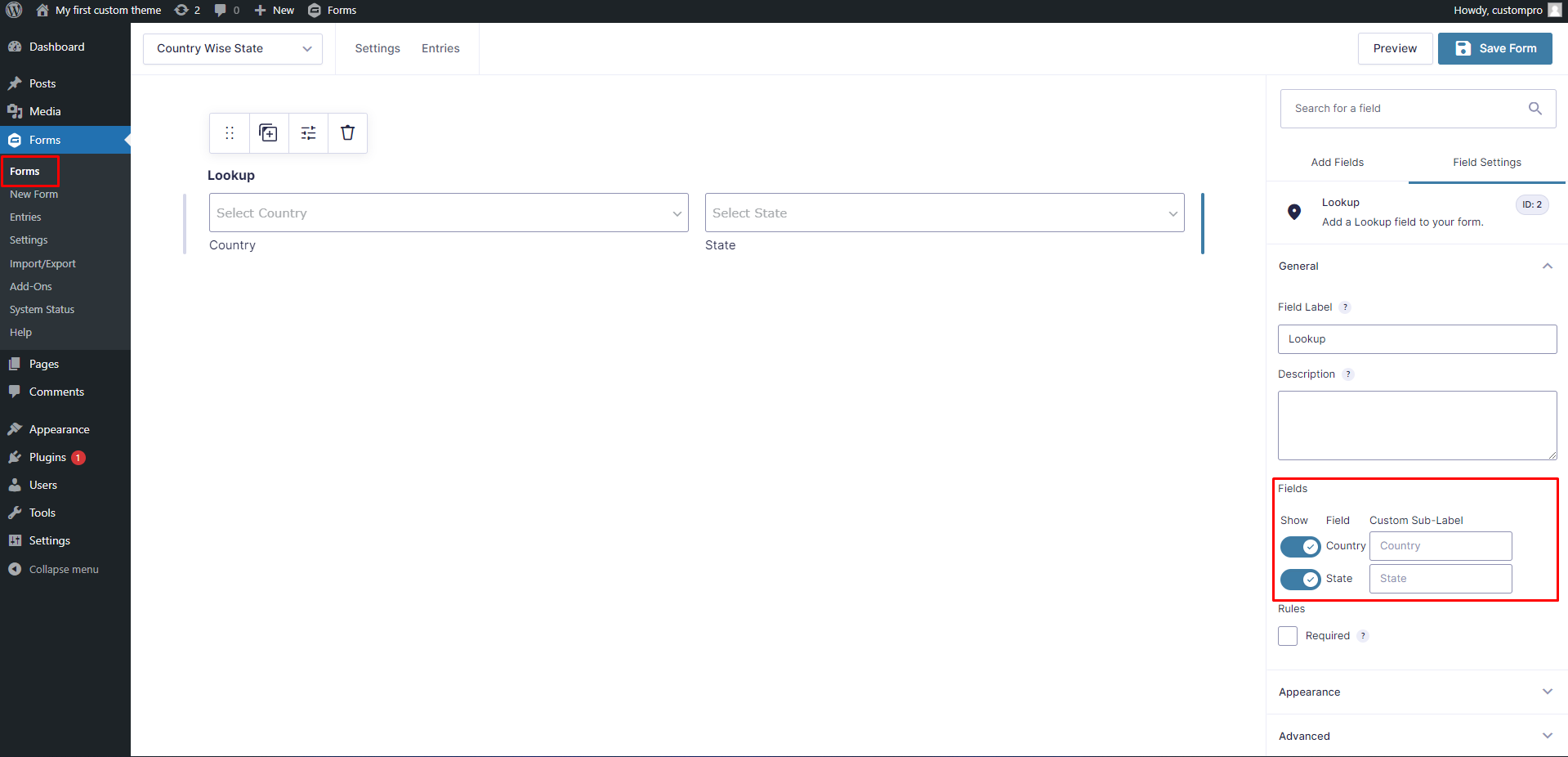
- State and country fields. Users are asked to select their state or country from a dropdown. The dropdown is long. Users cannot type to filter. Users select the wrong option. Users abandon.
- The fix: Filter the dropdown as the user types. “CA” should show “California.” “Ca” should also show “California.” The dropdown should also accept the full name. The user should not be forced to scroll through fifty options.
- Phone number fields. Users are asked to enter their phone number. The format is not specified. Some users include parentheses. Some include dashes. Some include spaces. Some leave out the area code. Some include the country code. The resulting data is inconsistent and often invalid.
- The fix: Use a single input field with a clear format example. ” (555) 555-5555 ” or ” 555-555-5555 .” Use input masking to format the number as the user types. Do not reject the input if the user includes spaces. Strip them automatically. Validate the country code separately.
- Address fields. Users are asked to enter their address. The form expects a specific format. Street address. City. State. ZIP code. Each field is separate. Users enter ZIP codes that do not match the city. Users enter city names that do not match the ZIP code. Users are confused.
- The fix: Use a postal lookup service. The user enters their ZIP code. The city and state auto-populate. The user can then correct if needed. This reduces errors and friction.
- Date of birth fields. Users are asked to enter their date of birth. The form uses separate dropdowns for month, day, and year. The dropdowns are long. Users scroll to find their birth year. Users give up. Users enter an incorrect year because they do not want to scroll.
- The fix: Use a single date field with a clear format example. ” MM/DD/YYYY ” or ” DD/MM/YYYY .” Use a date picker for mobile users. Allow users to type the date in any format, then parse it.
- Password fields. Users are asked to create a password. The requirements are not displayed. The user enters a password. The form rejects it. ” Must contain at least one uppercase letter, one lowercase letter, one number, and one special character. ” The user enters a new password. It is still rejected. The user gives up.
- The fix: Display requirements before the user starts typing. Show each requirement as the user types. ” At least 8 characters. ” Checkmark when met. ” At least one number. ” Checkmark when met. Do not reject the password. Validate it in real time.
The Common Denominator
These fields share a pattern. They ask users for information in a format that is unfamiliar or inconsistent. They do not provide examples. They do not validate in real time. They do not accept variations. They punish mistakes instead of preventing them.
The user is not the problem. The form is the problem.
The Redesign Process
Identify the field that users consistently fail. Then follow this process.
- Step One: Understand the user’s mental model. How do users expect to enter this information? What format do they naturally use? What do they think the field is asking for?
- Step Two: Provide a clear example. Show the expected format. ” Enter your phone number as 555-555-5555 . ” Not ” Phone number . ” The example is the instruction.
- Step Three: Accept variations. If the user includes parentheses, strip them. If they include spaces, ignore them. If they include an extra zero, adjust it. Do not reject the input unless it is truly invalid.
- Step Four: Validate in real time. Show the user that the input is correct as they type. Not after they submit. Not after the page reloads. As they type.
- Step Five: Provide clear error messages. If the input is invalid, explain why. ” Your phone number should have 10 digits. You entered 9. ” Not ” Invalid phone number. “
- Step Six: Test with real users. Watch users fill out the form. Where do they hesitate? Where do they make mistakes? Where do they give up? Fix those points.
The Advanced Solutions
- Autofill detection. Modern browsers can autofill forms. But they do not always align with your design. Use standard field names. ” email ” for email. ” tel ” for phone. ” address-line1 ” for address. The browser will know what to fill.
- Autocomplete attributes. Add the ” autocomplete ” attribute to your form fields. Browsers will use it to suggest previously entered values. ” autocomplete=”email” ” for email. ” autocomplete=”billing postal-code” ” for ZIP code.
- Internationalization. If your form accepts international users, do not assume a US phone number format. Use a country code dropdown with flags. Use a date picker that adjusts to local formats.
- Accessibility. Users with disabilities may have difficulty with complex forms. Provide clear labels. Use sufficient contrast. Ensure that all form fields are keyboard accessible. Test with screen readers.
The Bottom Line
The form field nobody fills out correctly is not a user problem. It is a design problem. Users are not stupid. They are uninformed. Your form has not told them what to do.
Fix the field by providing clear examples, accepting variations, validating in real time, and explaining errors. Then test the form again. If users still fail, fix it again.
The goal is not to punish users for their mistakes. The goal is to prevent mistakes from happening. A form that works is a form that respects the user’s time and intelligence. Design it that way.
About the Author

Peter Makeshoff
Peter Makeshoff is the founder and main author of Designer Daily.