
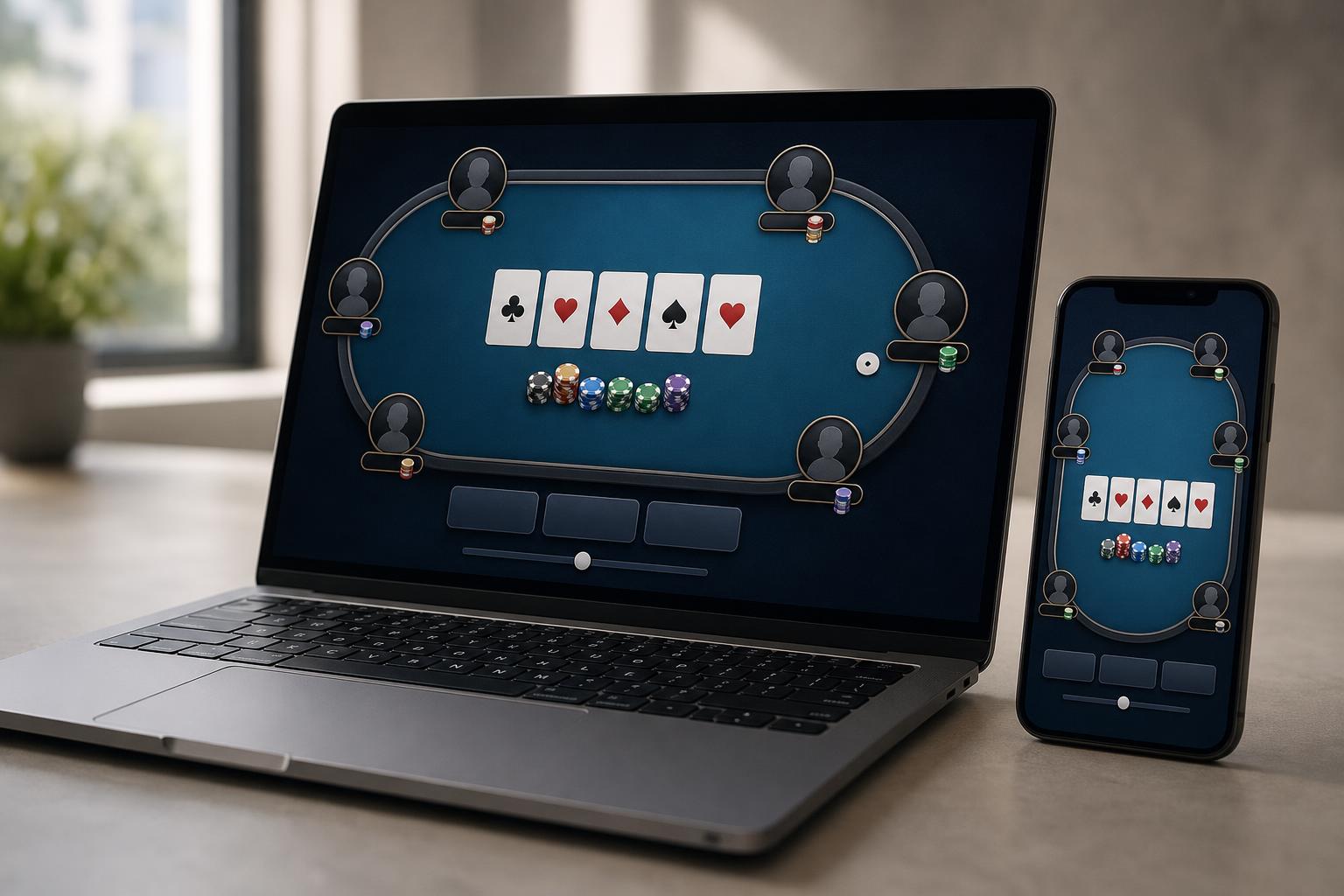
At a digital Texas Hold’em table, several things can change within seconds. A player calls, their chip stack drops, the pot grows and attention shifts to the next seat. The screen has to make that sequence easy to follow while leaving room for cards, conversation and betting controls.
Its arrangement gives those changes a predictable place. Community cards sit in the center, players surround them, and the user’s controls appear below. Looking at each part shows how the layout carries a hand from the opening bets to the final decision.
Finding Your Place: Seats and the Dealer Button
The seats form a ring around the table. Six-player and nine-player versions fit different numbers of player panels around the same shared area, with names, chips and private cards attached to their owners.
A small dealer button marks one seat for the current hand. In multi-player Hold’em, the seat immediately clockwise from the button posts the small blind, and the next seat clockwise posts the big blind.
These are required opening bets, and their positions help determine where the action begins.
For readers getting familiar with this order, 888poker’s Texas Hold’em guide explains the relationship between the button, blinds and clockwise play.
The button moves between hands, so a player’s position changes even when their panel stays put. Some desktop software lets users choose a preferred on-screen seat, giving them a consistent view as the dealer marker travels around the table.
Following the Hand: Cards, Chips and Player Panels
Once the seats are clear, the middle of the table supplies the shared information. Each player receives two private cards. Up to five community cards then appear in a horizontal row: three on the flop, a fourth on the turn and a fifth on the river.
A pot total appears nearby. One desktop arrangement places the number above the board, with illustrated chips below. The written amount gives an exact figure, while the chip graphics carry over a familiar feature of the physical game.
Around the edge, player panels answer three questions: who is there, how many chips remain and what action they have taken. An avatar and name handle identification; a stack value and temporary labels such as call, raise or all-in supply the changing details.
Placement matters because several amounts may be visible at once. A stack shows what a player has left, a bet shows their commitment, and the pot represents the chips being contested. Keeping those figures near the relevant seat or shared area uses proximity to help players tell them apart.
Taking a Turn: Buttons, Bet Sizes and the Clock
The controls below the table reflect the decision at hand. When no extra chips are required, checking passes the action while keeping the player involved. A bet opens wagering for the round. Facing an existing wager, the choices generally become fold, call or raise.
Amounts can appear inside the buttons. A call control shows the chips needed to match the wager, while a raise control can state the total being selected.
A slider, number field and preset buttons offer different ways to choose that amount. Dragging adjusts the value, typing allows precise entry, and presets select configured sizes. The software keeps entries within the permitted range; the action button confirms the choice.
Meanwhile, a highlighted seat and countdown show whose response is due. A time bank can extend the decision period. Responsible play also means setting personal time and spending limits, using only money one can afford to lose, and taking breaks independently of the turn timer.
Looking Back and Talking: History and Chat
The current hand takes priority, but users also need access to earlier action and conversation. These functions have separate places around the table.
Chat may open through a tab or speech-bubble icon, revealing messages and a text-entry field. Hand history records previous play, with recent-hands lists and replay icons providing ways to revisit a sequence.
These panels give temporary action labels a useful companion. A label beside a seat shows an immediate event; a history view lets the player return to earlier decisions. Opening supporting material when needed leaves more room for the board and controls.
Fitting the Table into Less Space
Desktop software can arrange table windows side by side, offset them in a cascade or stack them. Compact views can also simplify what appears inside each window, removing avatars and chat while retaining cards, names, stacks and action labels.
On mobile, portrait layouts support one-handed use. Secondary features can move into separate screens, while automatic switching can bring forward a table awaiting a decision.
The smaller view makes the priorities clear: readable cards, figures tied to the right players and controls close to the pending action. Those relationships hold the table together as its shape and available space change.
About the Author

Peter Makeshoff
Peter Makeshoff is the founder and main author of Designer Daily.