
8 CSS tips for better linking
It may sound stupid to say that, but the ability to link is one of the best features of the web. It is then really important to make your links display as convenient for use as possible. In the following collection you’ll find some tips to make your links better looking and more usable.
1. Display filetype icons
If you are linking directly to a file, why not let your users know about it? I’m always terribly annoyed when Acrobat launches by surprise. One way many thoughtful web writers deal with this issue is by adding (PDF) after the link. It would be even better if you used the proper CSS technique that does it automagically! Web-kreation has a good explanation on how to do that.

![]()
2. Show the target page’s language
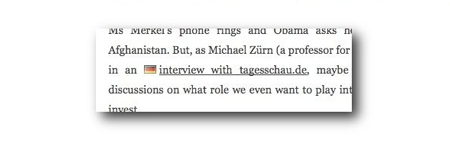
Are you often linking to websites written in another language than yours? If it’s the case, you should consider using pseudo-classes to display a little notification for the link’s language. It can be either a little country flag or a bracketed abbreviation of the language [en]. I would recommend not to use country flags for this, it can be misleading or hurt some national sensibilities. My country, Switzerland, is a very good example for that. Linking to a Swiss page with a French or German flag would be inappropriate. Even for English, which flag would you use? American, British, Autralian,…?
If you still want to use this technique, here is a tutorial.
3. Highlight microformats with CSS
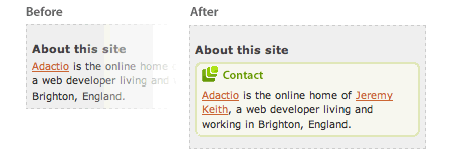
Highlighting the microformatted informations allows you to give a better view of your contact and personal information. It is definitely a good way to improve the usability of your website and to get more people contacting you.
Discover how to highlight your microformats on Hicksdesign.
4. Display an icon for external links
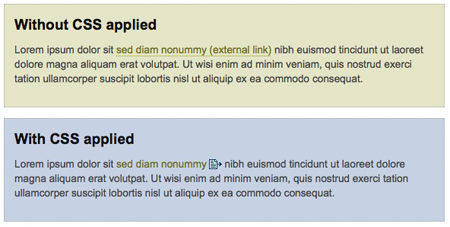
When browsing a website and clicking on links, I’m always thankful to webmasters that tell me whether I’ll be leaving their website or not. It is a nice way to indicate your website’s visitors where they are going.
5. Tooltips
Tooltips give more information to your website visitor about the link they are hovering. Most tooltips tutorials will use javascript, but did you know that you can create them with pure CSS? It is actually quite simple, as you’ll see on this page.

6. Learn to style visited links
I never know how to style visited links on the websites I design, this article gives some good ideas on how to do it.

7. Better link display on printed web pages
Linking isn’t limited to the online world, your links should also be visible on the printed version of your website. The most common way to achieve this with CSS is to display the URL next to the link text. Read this article to learn how.
There is however an even better way to display the links on a printed page, list them as footnotes. This article on A List Apart will teach you how, but it does take some scripting to achieve it.

8. Image replacement for submit button
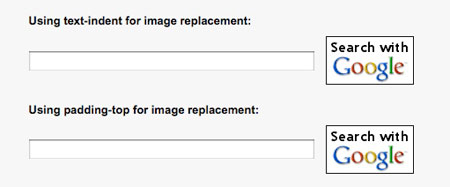
It’s quite easy to customize your submit button with simple CSS, but replacing it by an image will let you integrate the button more.


Also worth mentioning is padding/display: block links to make clickable areas bigger.
This can just be for ease of use or to make the linked area more inviting (and likely to be clicked).
Nice grouping of ideas. This is often overlooked. I know I often do, but it’s one of the most important parts of any page. I’ll be implementing the file-type icons in a few of my own sites.
Thanks!
Good tip, I agree. Bigger areas for links is really good especially for paging menus.
Good article, I especially like the idea of adding a small icon graphic by links to different file types. I agree, I can’t stand it when Acrobat opens unexpectedly.
nice tips, I like “Display an icon for external links” thanks..
Hilarious regarding the use of an icon for external site linking. The “Learn how to do this” link…well, it’s external…and has no icon!
Good article, though…and I agree on all points.
- WB
Hehe… I knew this kind of comment would be written. You are 100% right, but I wrote this article as I’m working on a redesign for the blog, so these features should be included in it
Being a graphic designer with minimum skills regarding coding and CSS, this is very helpful. Thank you!
Nice and smart list, adding small icons to your links is indeed an ideal way to give additional information!
Some while ago I developed another interesting technique for links: Context hover. Which when you hover over a link, highlights all the other links in a page linking to the same link. This adds a great deal of insight when browsing webpages.
Tooltips are often annoying with links in paragraph text.
Hey that’s pretty cool Kilian, I’ve neven seen this technique before. Thanks for sharing!
never expected to know these kind of css for the links, but these are very useful stuffs know. thanks.
Thanks Mirko, there are some very useful suggestions here, especially the display filetype and display language features.
hey mate,
since you’re writing an article on link styling, I wonder, why do you yourself use DOTTED style for external links? dotted unofficially signifies an abbreviation or a link which doesn’t href to another location, meaning it’s more suitable for JavaScript popups or some Ajax stuff.
that is one of the most common problems with designers and other web developers. a link must be instantly visible, with a solid underline (unless it is a clearly separated menu block, which by itself consists only of links).
thx, its very helpull 4 me
Great article, I’ll give #6 and #7 a try and integrate them in the future. The others are known and already practices on some sites ( not on my private one *g ).
Except the “link language”, which seems only suitable for external links and IMHO its too much to display the language _and_ the icon.
One idea might be to display this in a somehow integrated way?
See these img-links to get an insight what I thought of:
http://i8t.de/4qwj0ps8 and http://i8t.de/plq9v7bq
I’m still wondering why I haven’t yet tried out your 4th tip (which is, for, the most brilliant and effective one). Keep feeding me
Great article. Thaks for it. Is it ok if i add your site in my link list?
http://optimizationlink.blogspot.com/
The external link css is great.
yeah…. very helpfull!!!!! Thanks
On the links topic regarding dotted borders on active links, this is a common mistake I see all over the web and is very easily fixable. Check out my post to see how to remove dotted borders around hyperlinks at http://thedesigner.co.za/remove-dotted-border-on-hyperlinks-with-css
Also worth mentioning is padding/display: block links to make clickable areas bigger
Tooltips are even easier than that. A tooltip appears with the title attribute in many browsers, and it’s valid on any element.
Try Paragraph text
Nice tutorial, thank…
Good tutorial. Stepping up the design and formatting of well placed content links, can have an huge impact on traffic to related articles.
Thanks for the tip.. its very informative.. kudos!